Reassigning Records
Reassigning operation is used to assign a record(s) to another person. This may be necessary when, for example:
- All bugs are initially assigned to one user who then routes them to users responsible for specific projects/areas;
- The current records assignee wants to get more detail from the records initiator;
- A record was assigned to a ‘wrong’ team member and another person should be responsible for fixing it.
BUGtrack allows reassigning records in two modes: single record reassignment and mass records reassignment.
Procedure – Single Record
Step one. Open record details view and click the Reassign button.
Step two. Select the user to whom you would like to reassign the record and/or attach a new file and/or add more detaisl. Click the Save button to complete the reassignment.
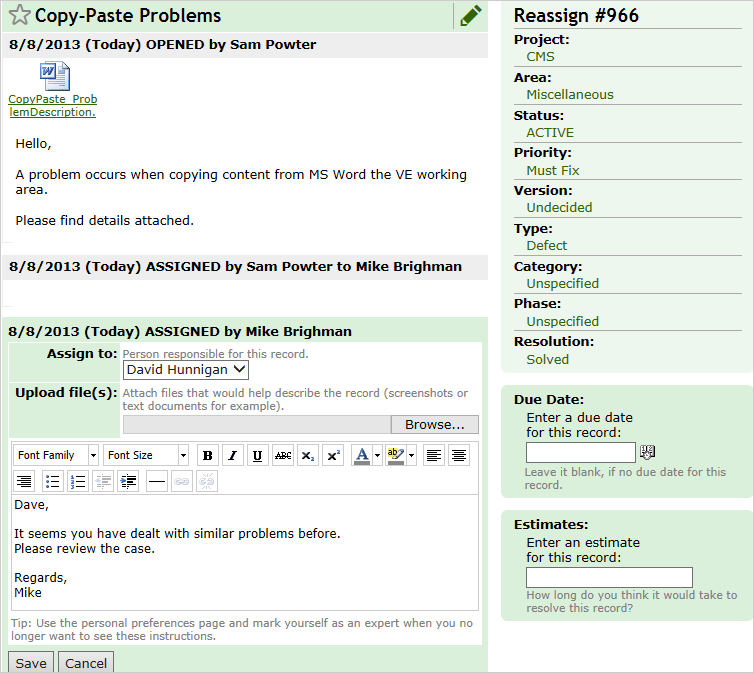
Procedure – Mass Reassign
Step one. Select all records you wish to reassign from the list and click the Reassign button.
Step two. Select the user to whom you wish to reassign all the records you have selected and/or attach a new file and/or add more detail. Click the Save button to complete the action.
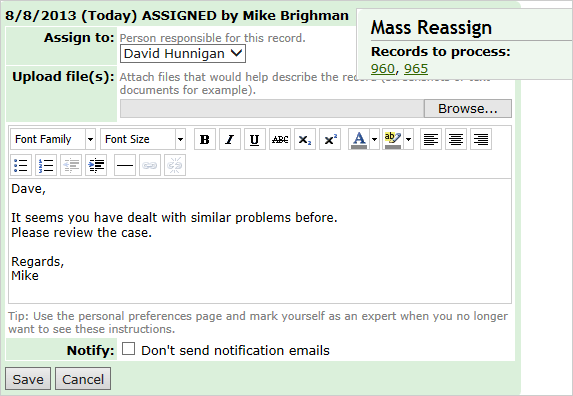
Note: When multiple records are reassigned, the user will receive an e-mail notification on every record for which the notification option is enabled. To disable multiple e-mails sending, select the Don’t send notification emails check box at the bottom of the Mass Reassign form.
Next: Linking Records